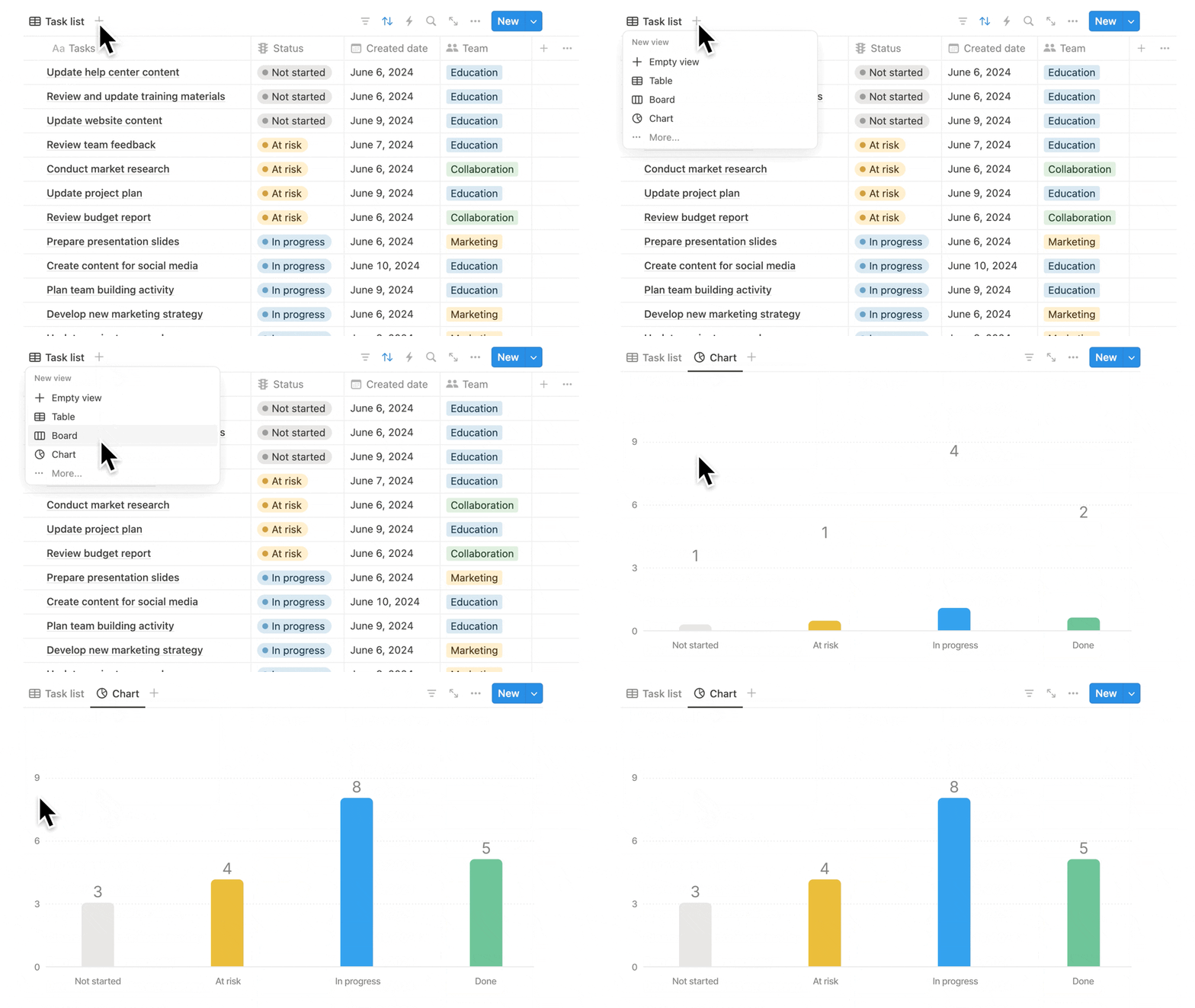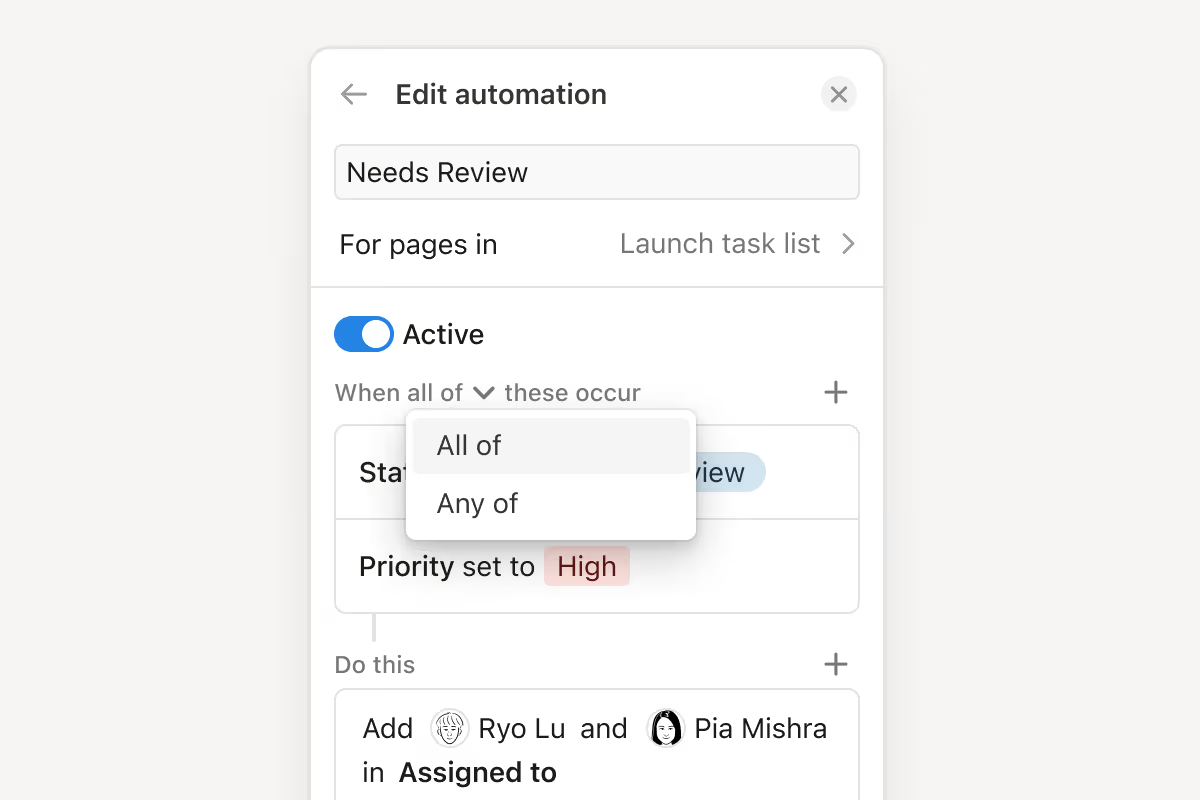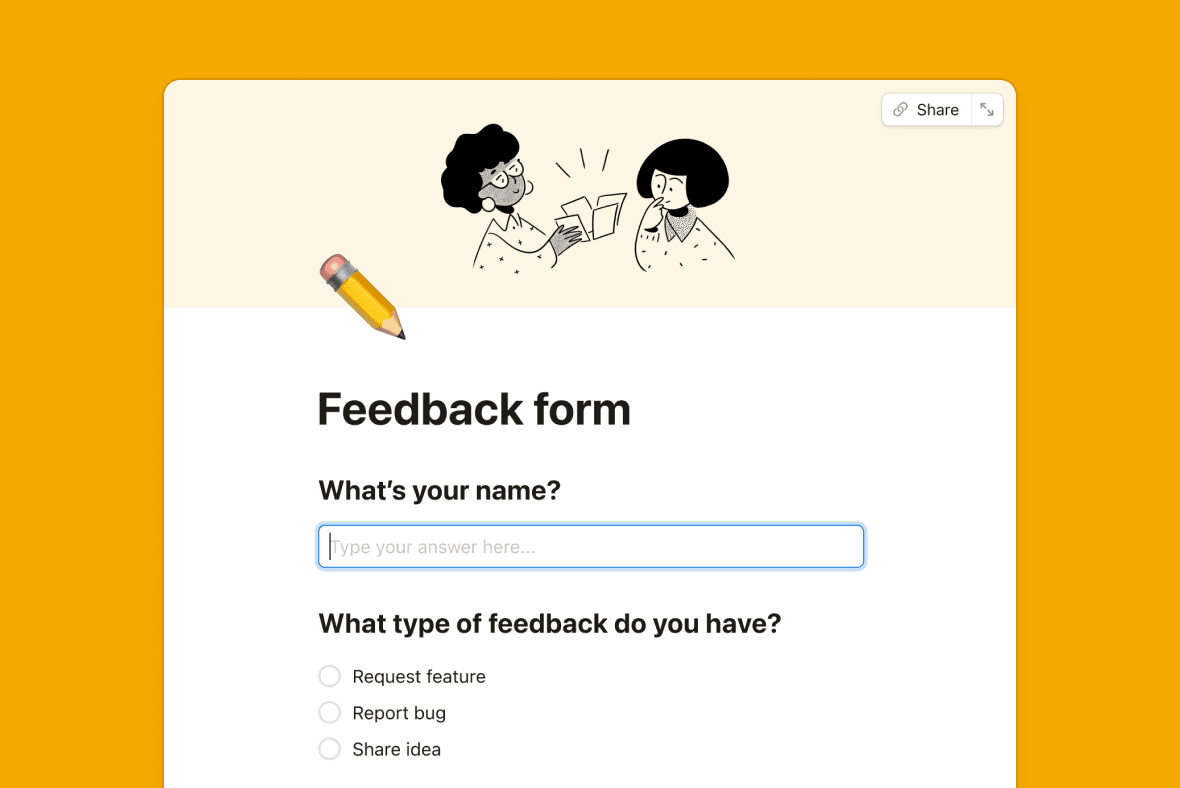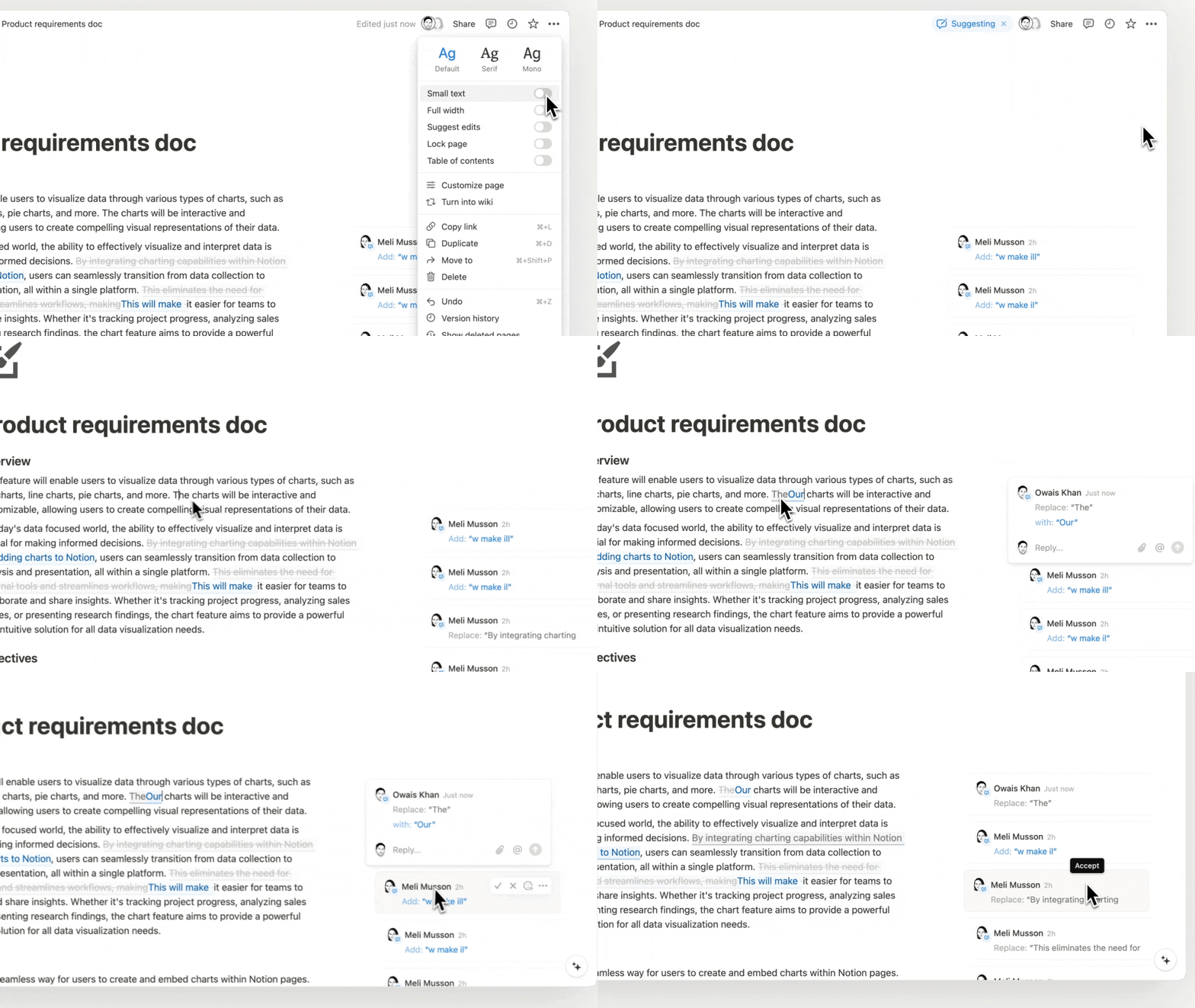
What’s New

Keep up with the latest releases, improvements, and fixes.

Follow @NotionHQ

Notion 2.21: Notion AI, for everyone

Try Notion AI for free

No more waitlist, no “limited preview.” That means you can start to leverage the power of AI right inside Notion, across all your existing docs and notes—today.

Use Notion AI to augment your capabilities in new and unexpected ways. Just open any Notion page, and give these a try:

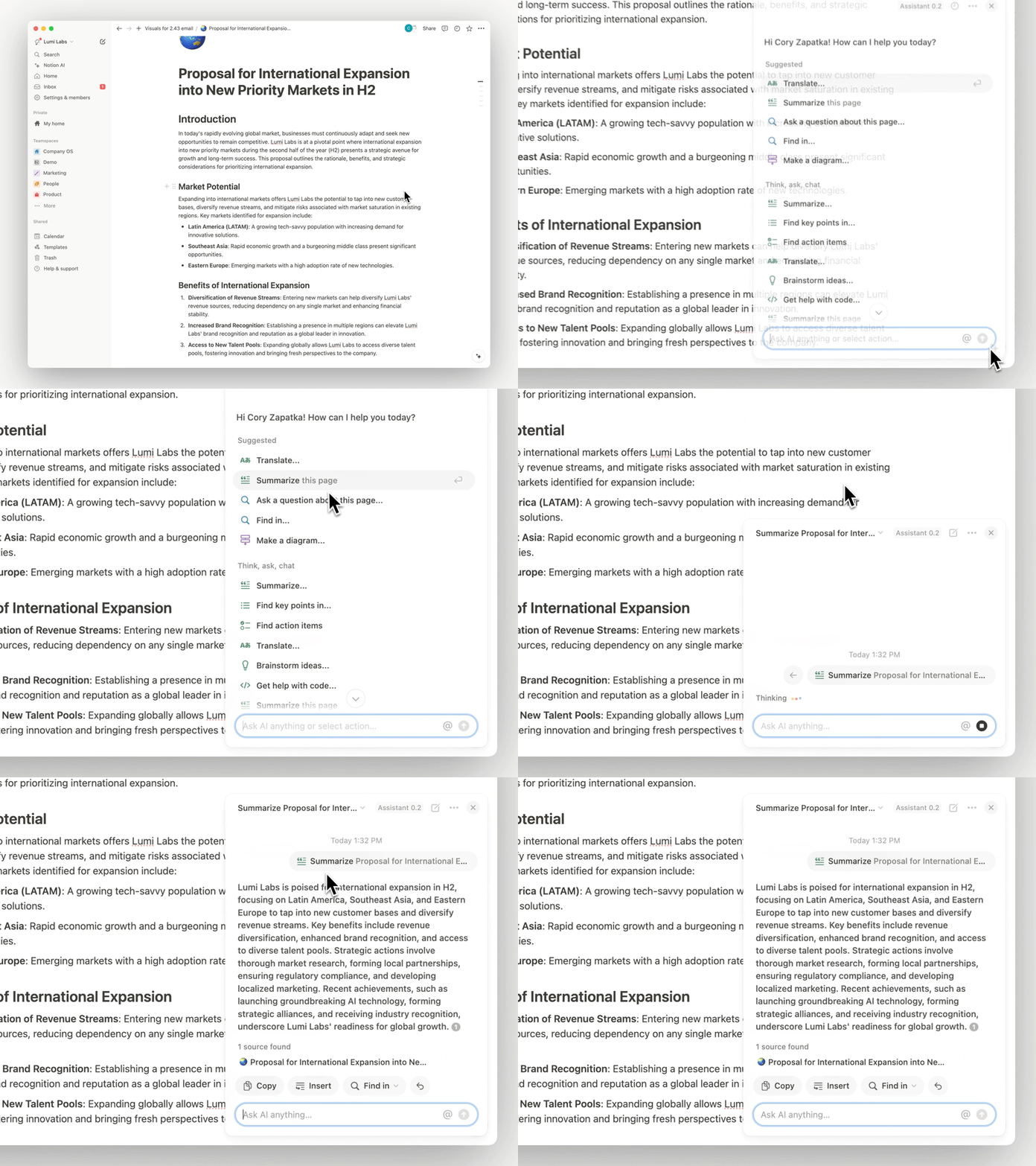
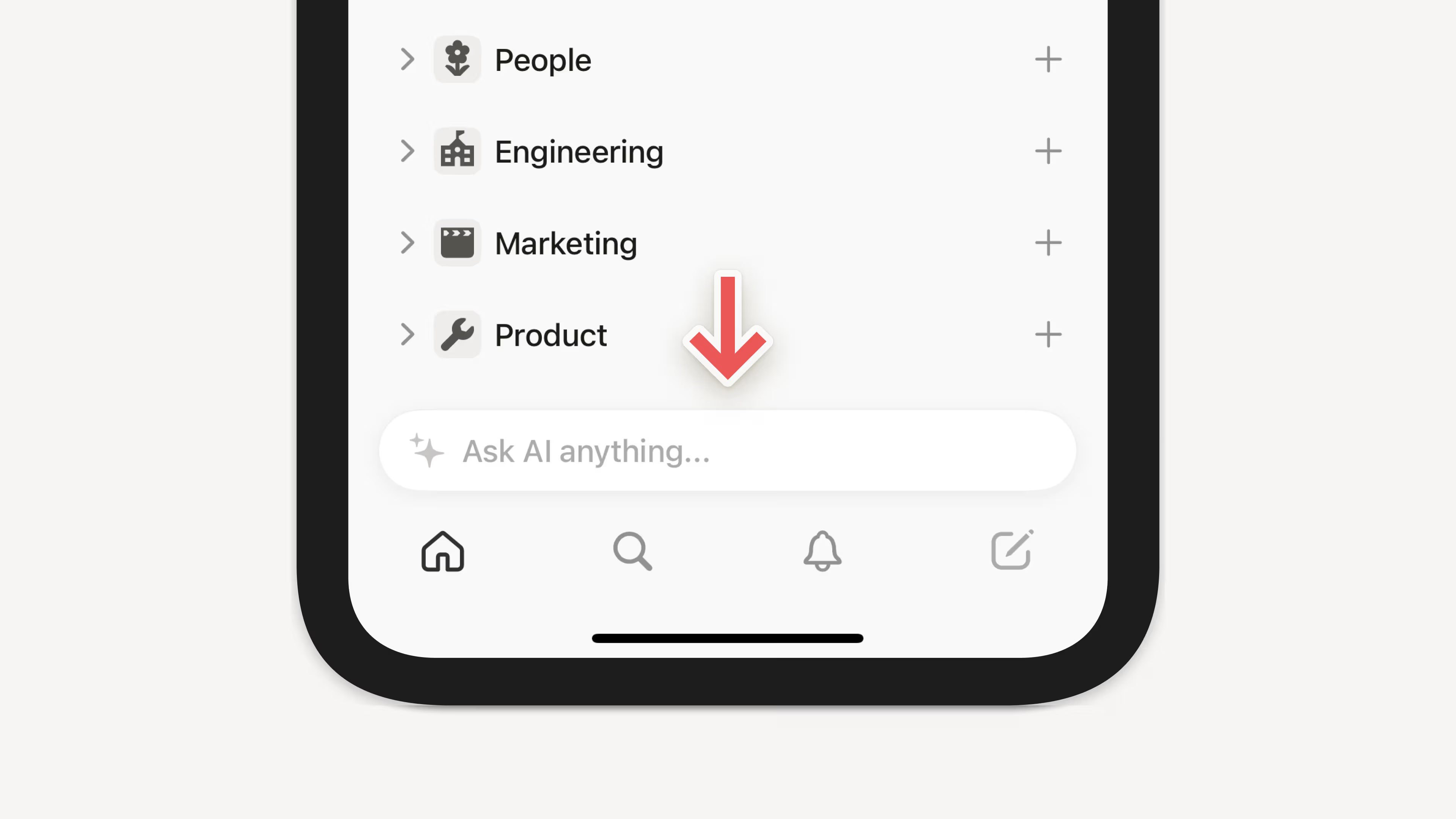
  • Generate an instant summary from a page of messy notes. Start a new line, hit space on your keyboard, then select “Summarize.”

  • Become a more effective communicator. Highlight a paragraph you wrote, click “Ask AI” in the toolbar that appears, and select “Improve writing.”

  • Approach projects with new creativity. Create a new page, click “Start writing with AI,” and ask it to list pros & cons of a decision you’re considering.

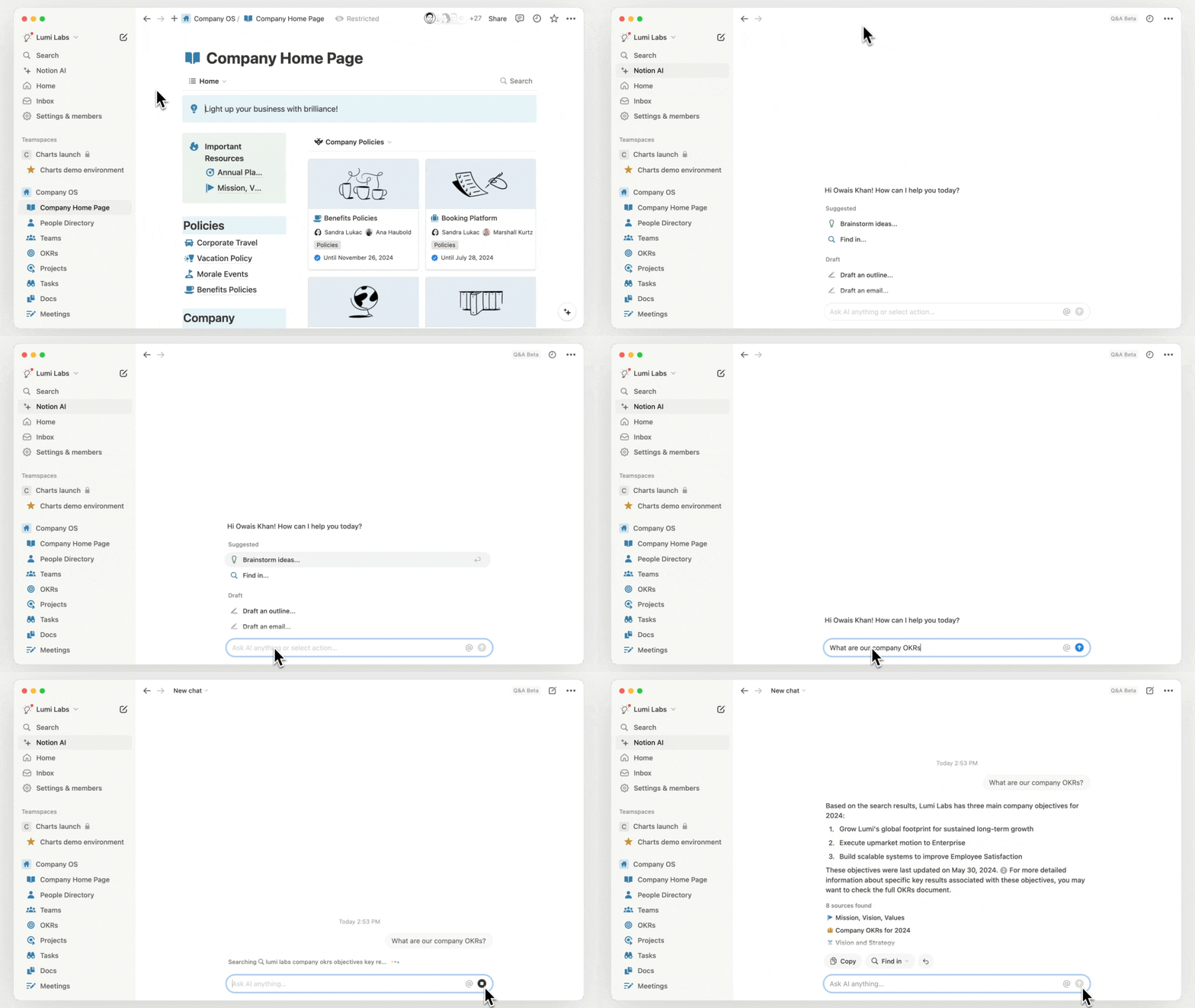
Nearly two million people signed up for the alpha waitlist ten weeks ago. Now, Notion AI is completely redesigned based on feedback and testing. Go to any Notion page and hit space to see for yourself.

Add unlimited Notion AI to any plan

Since launching the invite-only ALPHA, people have been testing Notion AI across every manner of workflow, from writing more effective documentation at work, to meal planning at home. Now, it’s available to everyone—whether you have an existing workspace full of notes, or you’re brand new to Notion, AI can be added to any plan.

  • Try Notion AI for free. You’ll get 20 free AI responses per member in your workspace. Promotion ends April 5, 2023.

  • Add to your workspace for $10 per member / month. For customers with annual billing, a 20% discount is available.

  • Use Notion AI as much as you need. No need to manage your plan or keep track of usage.

Perhaps the most exciting part of today’s launch is that for Notion AI, this is only the beginning. Using your feedback as our guiding light, we’ll continue to make Notion AI a better experience for you.

Notion 2.20, now with page and workspace analytics

Page Analytics

Is your idea resonating with your audience? Now you can see how many people are engaging with a page—with views, viewers, and editor information shown right in the sidebar. Use it next time you share a product spec or publish a blog post.

Go to 🕘 View all updates at the top right of your page → Analytics

Workspace Analytics (Enterprise plan)

Understand how the content in your workspace is performing—and identify areas for action—with metrics like number of views, unique visitors, and last edited date.

Workspace owners can also view user engagement—including top champions and members who could use more support—as well as search metrics.

Go to ⚙️ Settings & members at the top left of your workspace → Analytics

Better notifications

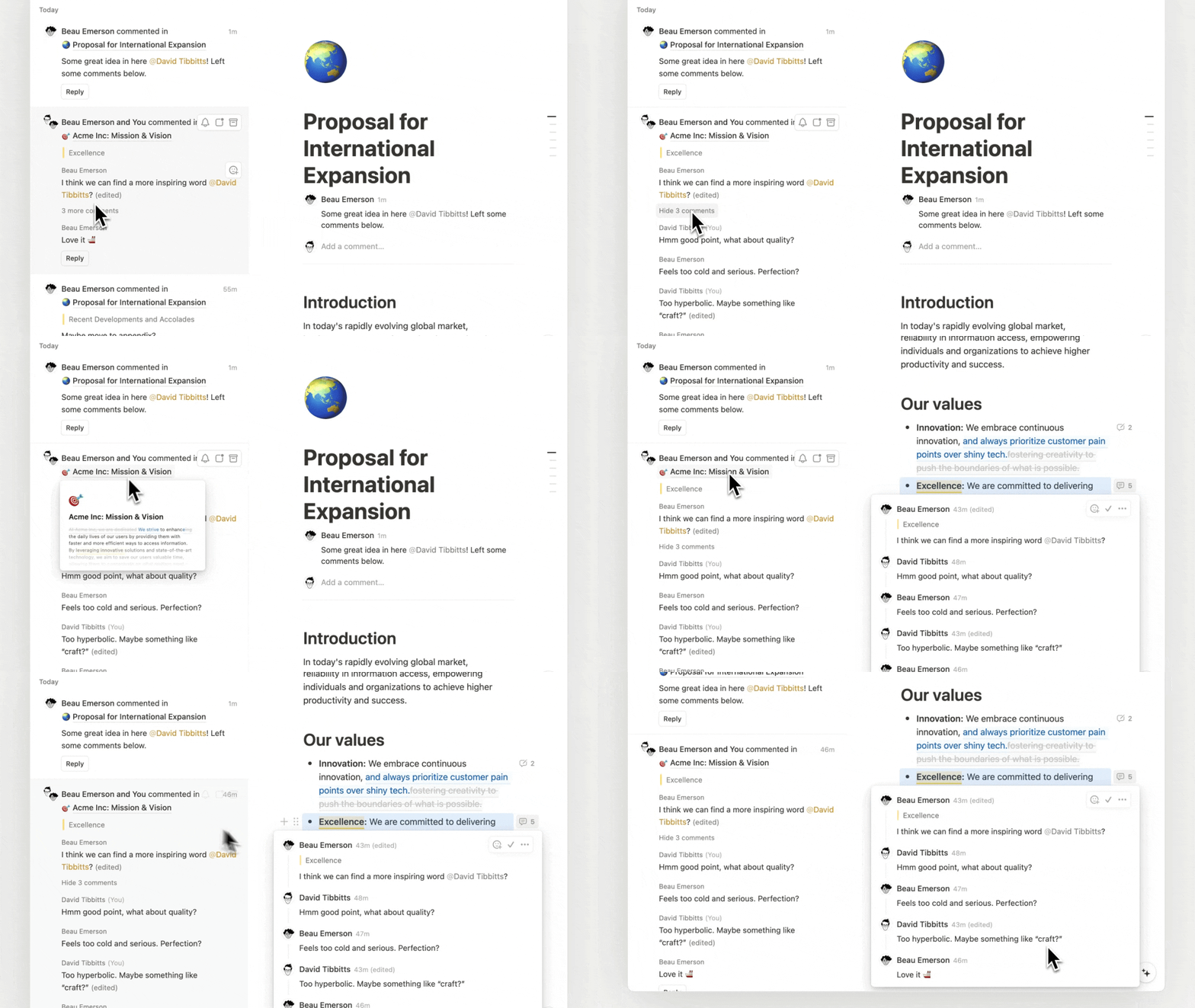
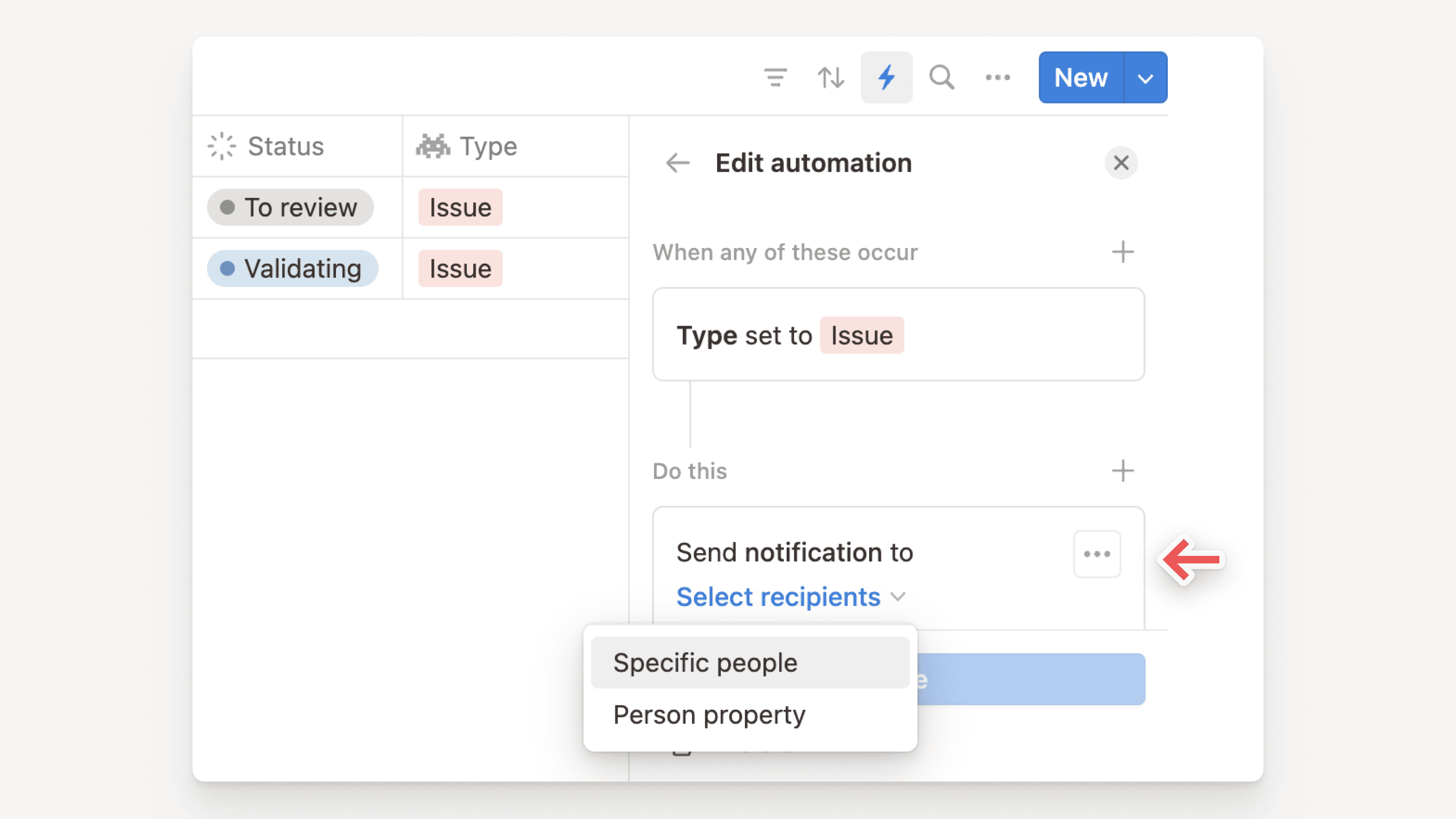
Notifications are like a mini-assistant, keeping you up to date and filtering out noise. Now, you’ll only get notifications when you’re @mentioned or someone replies to your edit. Clear notifications by tagging them as read or archive.

Make bulk changes in a database

Select & change values of multiple rows in the table view of a database (e.g. select tasks to update status/priority).

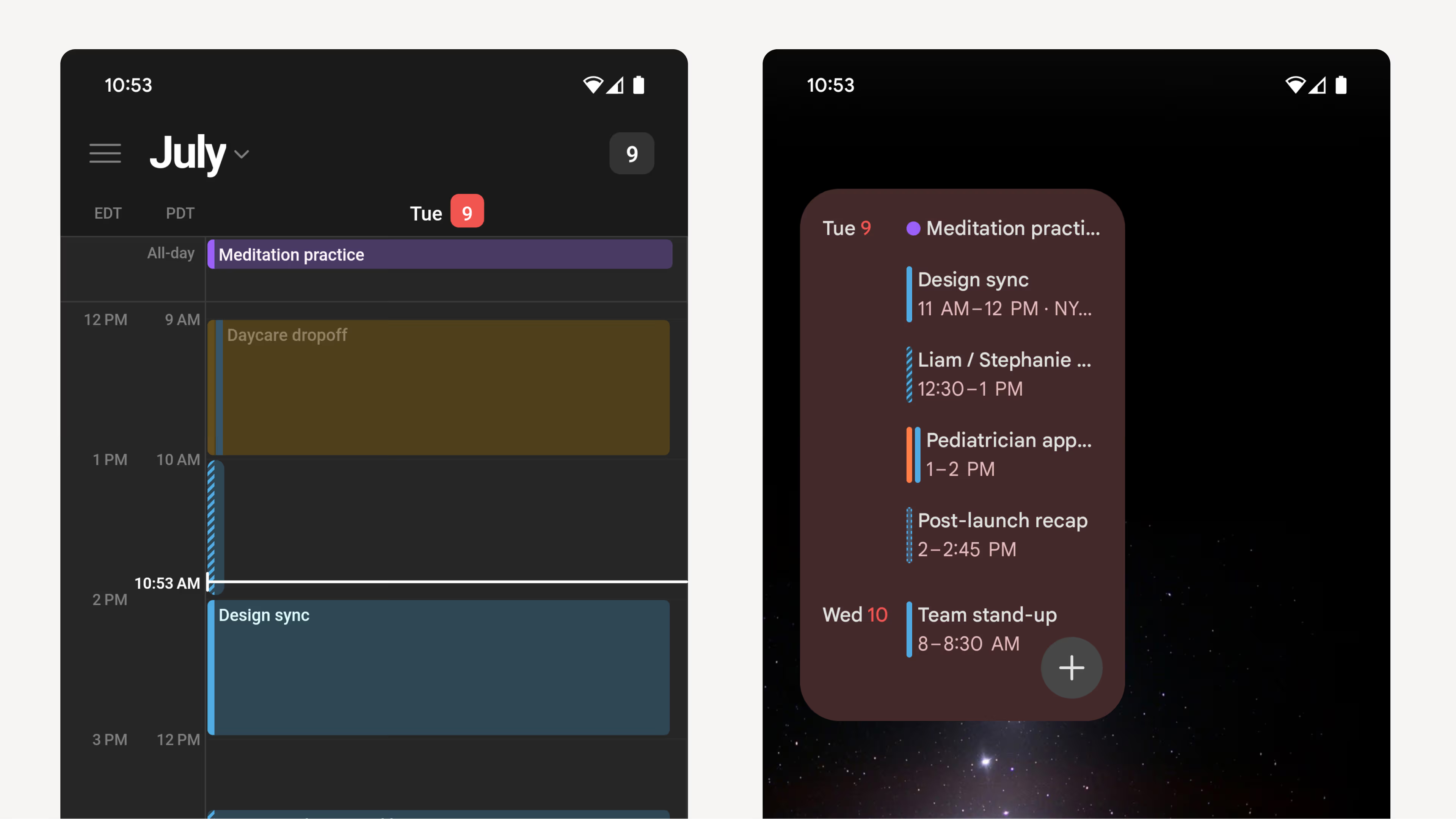
Take quick notes on Android

Now you have a Quick Note widget for Android that lets you create a new Notion page immediately after clicking. Use it the next time you think of a design idea at a basketball game. iOS coming soon.

Fixes and Improvements

  • Companies on an Enterprise plan now have more options to view, manage, and restrict workspaces that are created using the company’s verified domain

  • Added the ability to turn a sub-page into a teamspace. Just click on the menu for the subpage → Turn into teamspaceCreate Teamspace

  • The top-right ••• menu for every page now has a duplicate option

  • Made updates to the mobile search experience that improved load times

Notion 2.19, now with subtasks & dependencies

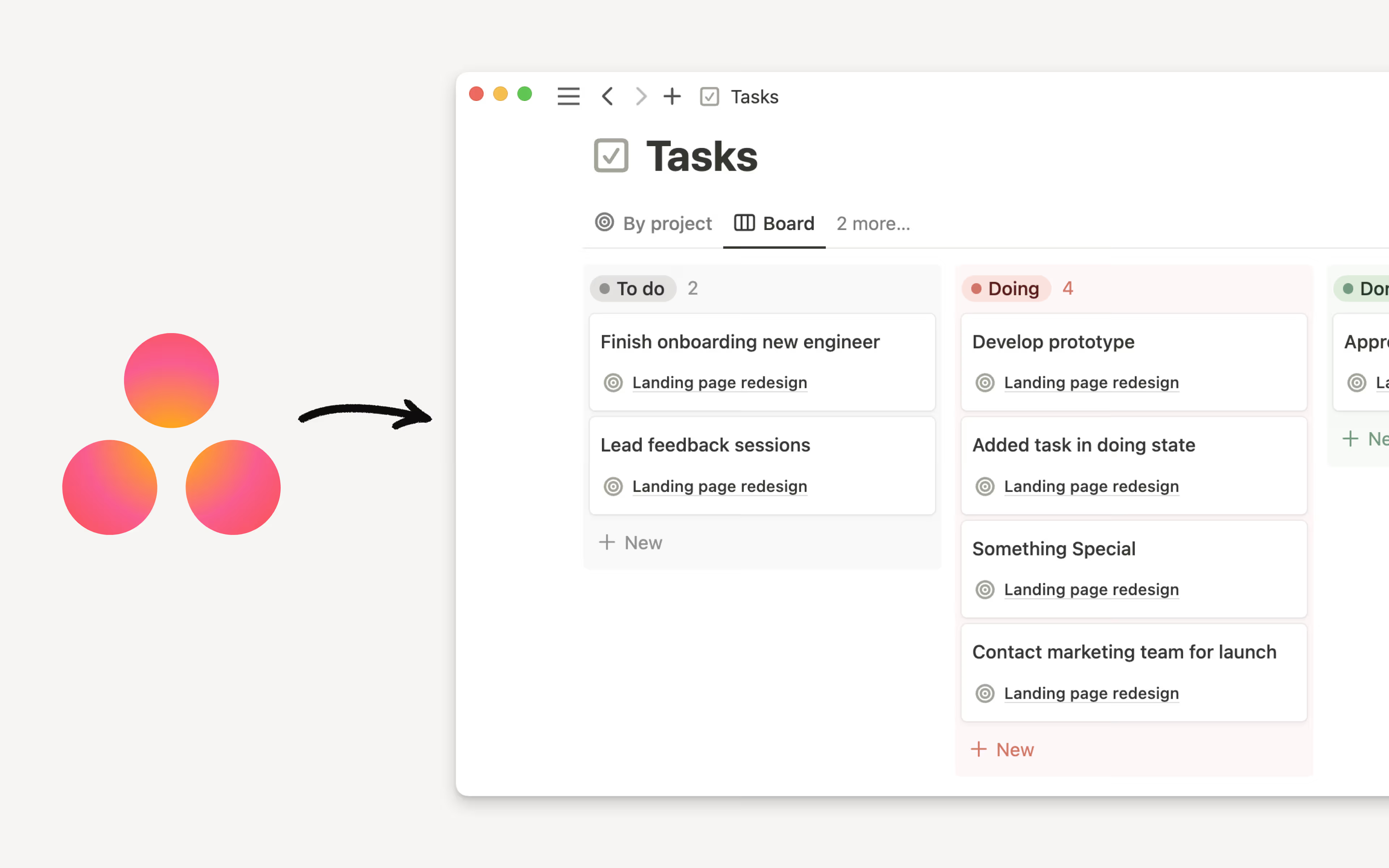
Database sub-items

Break out any project or database item into smaller tasks, so nothing falls through the cracks. Use sub-items to:

  • List out each sub-task of a project to make it easier to assign and track your team’s progress

  • Document your company’s org chart by team and sub-team

  • See all the key results that ladder up into a company-wide objective

To get started:

  • Go to the ••• menu in the top right-hand side of your Notion database in a Table layout

  • Click on Sub-items and go through the set-up flow

  • Hover over any database row, and then click on the toggle on the left side of the row to add a new sub-item

Dependencies

Easily visualize when one task is dependent on another task’s completion. Dependencies can easily be viewed with directional arrows in Timeline view, allowing your team to see conflicts and roadblocks early, and stay on track.

To get started:

  • Go to the ••• menu in the top right-hand side of your Notion task database in Timeline layout

  • Click on Dependencies and go through the set-up flow

  • Hover over any database item, click the yellow arrow, and then drag it to connect to the item it is blocking.

Tabs in your desktop app

Switch back and forth between your projects, docs & wiki in Notion’s Mac or Windows app, without the added distraction of your web browser.

Use keyboard shortcuts to make this easy and seamless:

  • Command/Control + Click now opens a tab in a new tab rather than a new Window

  • Command/Control + Shift + N opens a new window

  • Command/Control + Number now switches workspaces

There are two reasons to use Notion in your desktop app instead of your web browser: 50% faster performance, and a more focused writing experience.

But whenever you clicked on a link to a Notion page (in an email or Slack message, perhaps), it would open in your browser even if you had the desktop app installed... until now!

When a link to a Notion page opens in your web browser, you should see a pop-up that lets you open the link in your desktop app instead.

To change your preference, go to Settings & members → My notifications & settings → Open links in desktop app.

Easier edits for databases in List view

Stay in the flow by making quick edits in List view, without the need to open every database page. Just click on any property to make changes, or use these keyboard shortcuts:

  • Use Shift + Enter on any selected page, to create a new item underneath

  • Use tab to move between properties for easy editing

Data scientists are comfortable in Amplitude. Designers know their way around Figma. But it can be challenging to find the updates you need from these tools if you’re on marketing, sales, support, etc.

Notion supports dynamic link previews from a growing list of partners so you can bring more visibility to the info in those tools. And now, any previews that contain an image are fully resizable.

Bug fixes & improvements

Notion in German

Notion is now available in German (beta)

Following our French language launch earlier this year, we're excited to expand our support for our European users—from today, Notion is available in German (beta).

  • After changing your language to German, click Vorlagen at the bottom of your left-hand sidebar to find German templates

  • Go to notion.com/de-de/help to find translated guides & tutorials

To change your language settings on your desktop, go to Settings and Members, then select German under Languages and regions.

Mobile and desktop apps will be released in batches; please wait until your app reflects the latest version. If your phone language is set to German, the Notion app will automatically change to German when available.

Bug fixes and improvements

  • The teamspace settings menus have been redesigned to be more intuitive and easy to use

  • When adding people to a teamspace, you can now add people who aren't a workspace member yet — adding them to the teamspace and the workspace

  • The Enterprise Plan in Korea is now called 엔터프라이즈 요금제 instead of 기업 요금제. No other changes to price or functionality.

Expanded Free Plan & new Business Plan

Still free for everyone. Now with even more features.

In May 2020, we made a commitment: Notion should be free for personal use. Today, we’re taking this a step further. Now the Free Plan is more collaborative and capable, with these features that used to require a paid subscription:

  • More guests: invite up to 10 collaborators, friends & family to your pages

  • Page history: view and restore previous versions of your content, up to 7 days

  • Teamspaces: create custom sections in your sidebar for a new layer of organization

As always, individuals can add unlimited pages and blocks to Notion. And teams can kick the tires before paying, with a limited block trial — no time limit, no credit card needed.

New Business Plan

Trying to get cross-functional teams on the same page? Notion’s new Business Plan was designed for companies who need a few extra tools for admins, to ensure employees are using the workspace effectively:

  • SAML SSO: securely manage employee access at scale with single sign-on

  • Private teamspaces: dedicated areas for working groups to collaborate on sensitive docs

  • Bulk PDF export: perfect for legal and compliance backups of the entire workspace

  • COMING SOON Advanced page analytics: see who’s viewing and editing your content, and when

Choose a default skin tone and icon color

When you add an emoji or icon for your page, you’ll now see an option to set a default skin tone and icon color. Your chosen color will be pre-selected anytime you add an emoji or icon in Notion.

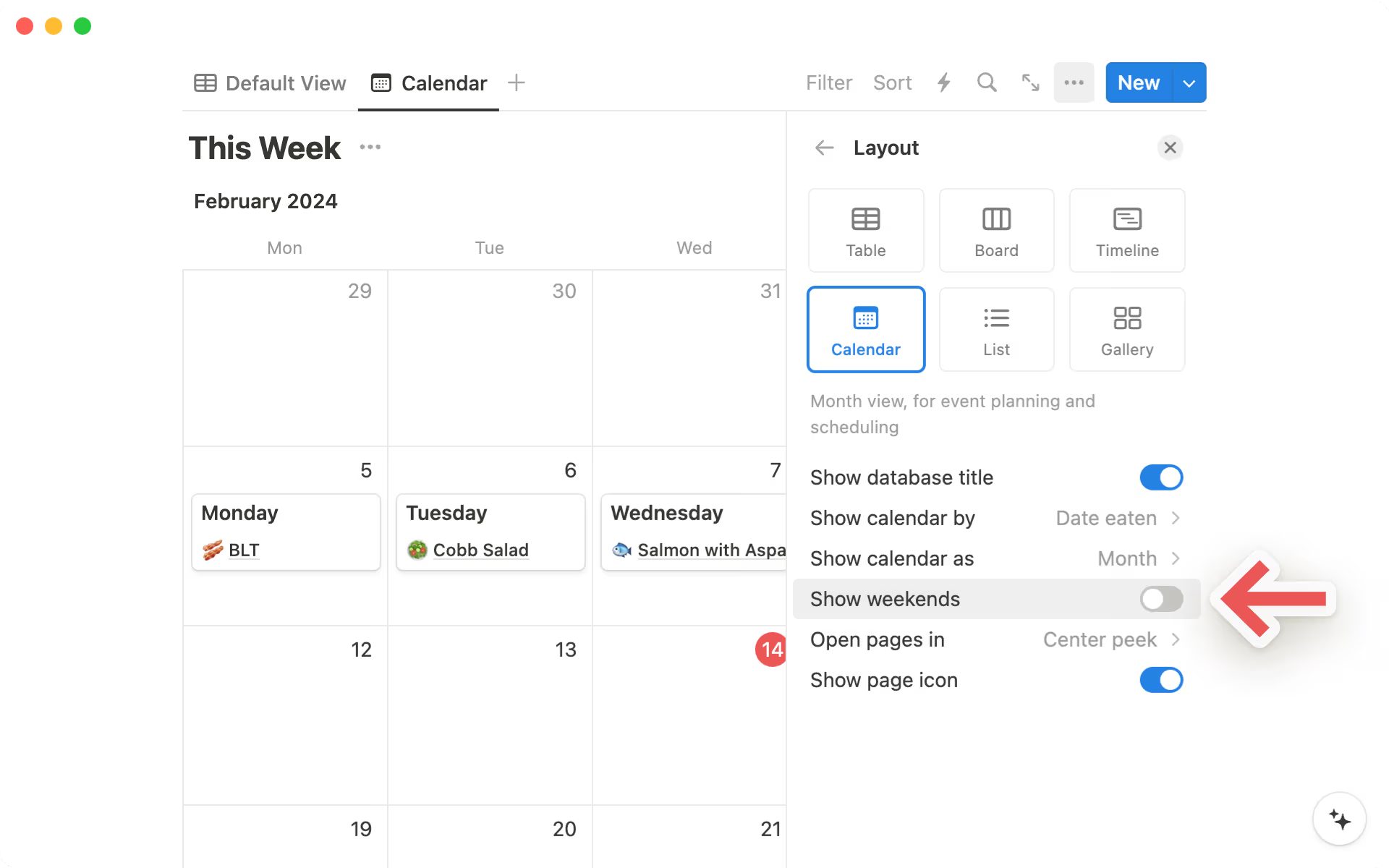
New “this week” filter for your tasks

Getting the most out of your week starts with knowing what to work on. Now you can always see what tasks need your focus in the current week using the new “This week” filter.

To use it:

  • Create an Advanced filter in a database

  • Select a date property and then select the qualifier “Is within”

  • Select “This week” as the filter option

Notion AI + templates to build out your workspace

Notion AI (in private alpha)

Notion AI is a writing assistant that can help you write, brainstorm, edit, summarize, and more. Consider Notion AI your partner. It augments your thinking — helping you save time or spend it more wisely.

Learn more and sign up for the waitlist →

P.S. Help us build the future of Notion AI: open roles at Notion

Build your workspace with new templates for project management, meetings, and docs

It’s now easier for you to set up your team’s workspace with database-powered templates for managing projects, tracking meeting notes, and sharing docs. These templates come pre-configured with the database views, pages, and relations needed for your team to effectively manage their work in Notion.

These include:

In addition, our template gallery has been redesigned and updated so that it’s easier to find any template – from a company wiki to a daily habit tracker – all in one place.

To access the template gallery, click on Templates in the left sidebar menu. This will be rolling out to all users in the coming weeks. If you don’t yet see it in your workspace or local language, you will soon!

Jump to your recently viewed pages on mobile

You and your work should be able to smoothly transition from your laptop to your phone. On your mobile app, you’ll now see a Jump back in section that displays the pages you viewed most recently. Use the train ride home to review a product doc without needing to frantically search Slack.

Custom icons for database views and properties

Finding the perfect emoji/icon is an art. Now you can add a custom icon to any database view or property 🙂

  • Go to the edit settings for any database view or property

  • Click on the icon next to the name

  • Change the default icon to one of the 600+ available icons

Add additional properties to Synced Databases

You can now add additional database properties to any Synced Database (currently in open beta with GitHub, Jira, GitLab, and Asana), where previously you could only create a relation or roll-up. Use this to provide your team with extra context about database items like Jira tickets, GitHub Issues, Asana tasks, and more, directly in the Synced Database in Notion – for example, add a text property with information about a Jira ticket, or add a Notion tag to easily create a view of specific GitHub PRs.

  • Go to any Synced Database

  • Click on the + to add any property

Bug fixes and improvements

  • Made it easier to edit links, whether you’re linking to a Notion page or a URL. We’ve also added the ability to change the title of a link directly from the editor popup

  • Made it possible to reorder all the fields that appear when using a relation property (e.g. fields like person or status can be moved to the left of the property's title)

  • For new API features & improvements, go to developers.notion.com/changelog →

Recurring tasks, meeting notes, and updates

Set up recurring tasks, meeting notes, and more with repeating database templates

Our tools should do more for us. Now you can set a database template to duplicate on a repeating basis. Here are some ways to use it:

  • Create recurring tasks to track daily or weekly to-dos

  • Automatically generate a meeting agenda for a daily standup

  • Create project updates on a weekly or daily basis

To use it, open a Notion database and click on the blue arrow on the New button to see your database templates. Click on ... on any template, where you’ll see a new option called Repeat. Select the frequency for the template to be automatically duplicated.

Remove vertical gridlines in Table view

You can now remove vertical gridlines from your database Table view to get a cleaner look. Here’s how:

  • Go to the ... menu in the top right-hand side of your Notion database in a Table view

  • Click on Layout and toggle gridlines on or off

Connect Notion’s “People” property in Synced Databases for GitHub and Jira

You can now connect the People property from your Notion database to identities in GitHub and Jira when using Synced Databases (available in open beta). Once you’ve enabled this setup in GitHub and Jira, fields that feature people – like GitHub contributors and Jira assignees – will be mapped to their profiles in Notion, based on email.

Bug fixes & improvements

New connections to Box, Lucid, and more – bringing additional context and transparency to Notion

Paste a link from Box, Lucid, Linear, and GitLab to see previews that automatically update in Notion.

  • Bring in files from Box – like a spreadsheet containing next year’s forecast models, or images for a marketing campaign – directly in Notion, so your team can see all the files they need for a project in a single place.

  • Preview your latest whiteboard brainstorm and product designs from Lucidchart and Lucidspark in Notion, giving your team the context they need to spec out the next stage of a project.

  • View the latest status updates from Linear tasks in Notion, keeping your team on the same page as projects progress from one milestone to the next.

  • Link to a GitLab Merge Request, so that your team can see the latest status update in Notion.

If you’re a developer interested in building a link preview with Notion, fill out this form →

Synced Databases, now with support for GitLab and Asana

See up-to-date information from GitLab and Asana in a Synced Database (currently in open beta). To get started, paste a link to a GitLab repository or Asana project directly into Notion, and see it rendered as a Notion database.

  • Use database filters to share custom views of Asana projects and tasks, so that everyone can see the status of a project even if they don’t have an Asana log-in.

  • Connect GitLab Merge Requests to your task database in Notion, and give team members across your company an up-to-date view of the status – all without leaving Notion.

Bug fixes & improvements

Public pages that automatically expire and more

Auto-expiring public pages

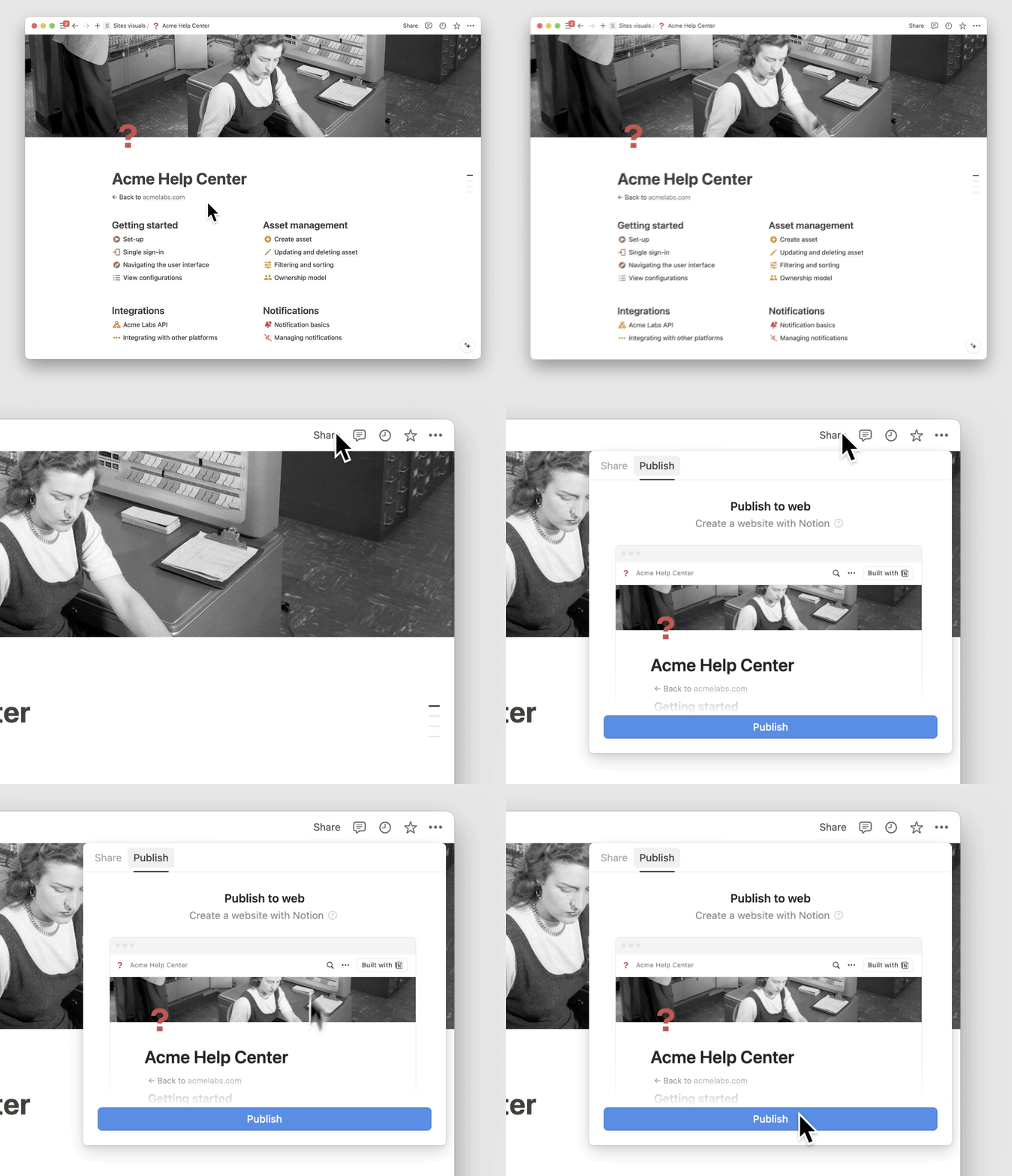
Some public pages are only meant to be shared for a limited time (e.g. marketing one-pagers or investor updates). Now, when you select Share to web on a paid plan, you have the option to set an auto-expiration date using the new Link expires button.

Dynamic @mentions in the title of a database template

Less manual entry is always a good thing. Now, you can include variables like @today/@now/@me in the title of your database template (e.g. including @today in the title of a meeting notes template ensures the current date is always in a new meeting note).

Interact with text in images on iOS

A picture is worth more than a thousand words – especially if you can copy and paste text from it. After adding an image with text in your iOS app, you can now:

  • Select and copy text + translate

  • Click on URLs, open addresses in Maps, create calendar events, save phone numbers, etc.

  • Interact with a QR code

This feature is only available on iPhone XS and above with iOS 16

Use Notion Web Clipper to pull recipes

No more scrolling through extra fluff to view a recipe. When you use our web clipper to add a recipe to your workspace from a site like The Food Network, we’ll automatically place the recipe at the top of your Notion page.

Bug fixes & improvements

Every few months, our engineers participate in a week-long “bug bash” to keep your Notion workspace running smoothly. Here are a few of the bug fixes & improvements that resulted:

  • You can now search for the perfect emoji in any of our supported languages

  • Added Alt/Option + Shift + L as a shortcut to copy a link to a specific block

  • Fixed a bug to make interacting with comments smoother

  • Fixed a bug to ensure that switching your workspace’s language works consistently

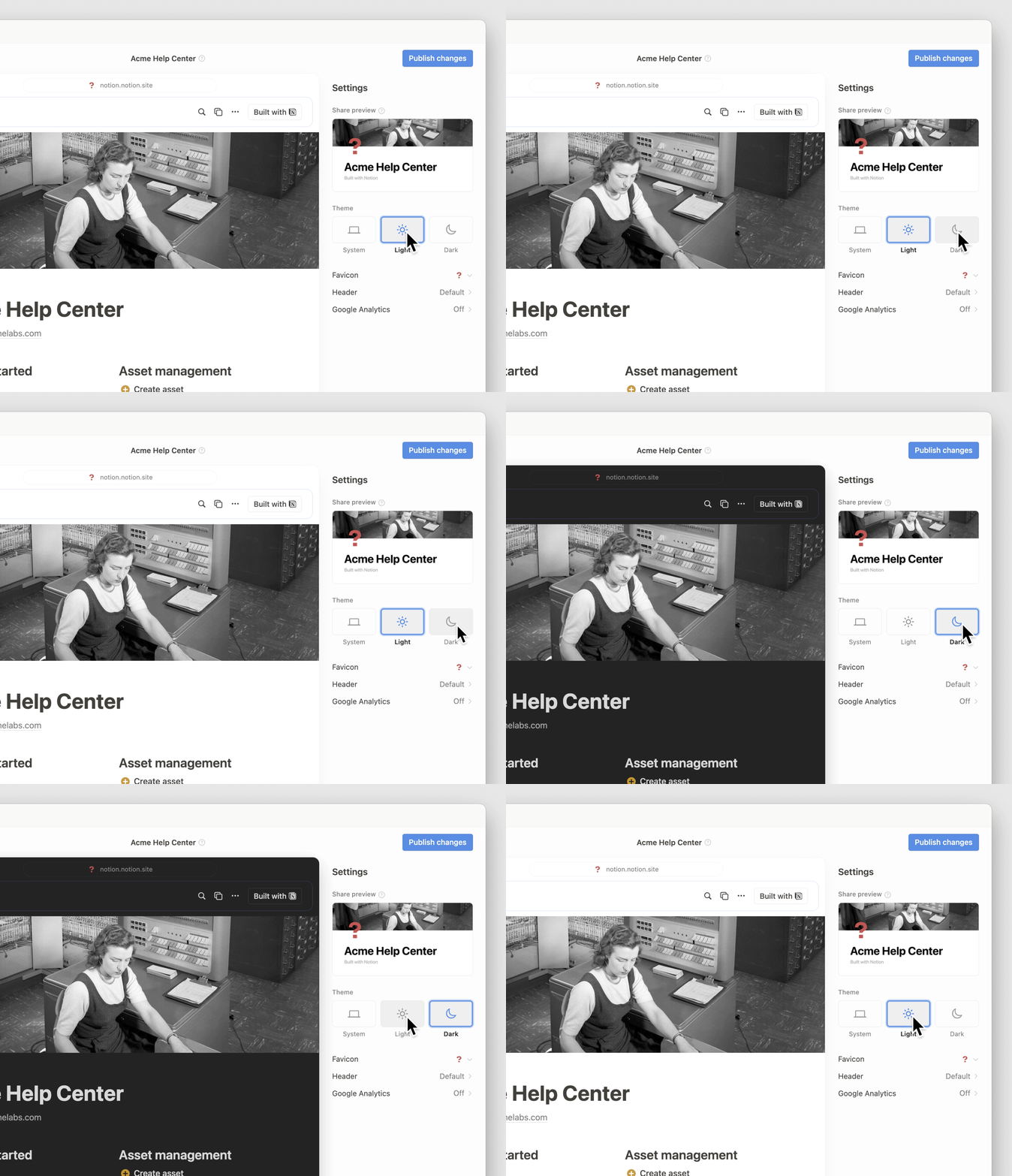
  • Choosing Dark/Light mode from one tab will instantly take effect on all other open tabs

  • Improved the ability to recognize date mentions typed in non-English languages

  • Added markdown support for double-byte characters that are common in APAC countries

  • For new API features & improvements, go to developers.notion.com/changelog →

More improvements to editing

Editor bug bash

The more you write in Notion, the more you notice little quirks you don’t expect — things that interrupt your train of thought. So we combed through your feedback to find a few of these rough edges, and made some tweaks so the editor feels more natural:

  • Spell-check now works more reliably when you select a word to fix its spelling

  • Inserting an item at the start or end of a number, todo, or bullet list feels more seamless

  • When a table or database is the last block on a page, clicking beneath it will automatically create a new block

  • New shortcuts for strikethrough: (Ctrl/cmd + Shift + X) or (Ctrl/cmd + Shift + S)

Browse through a page’s images from one place

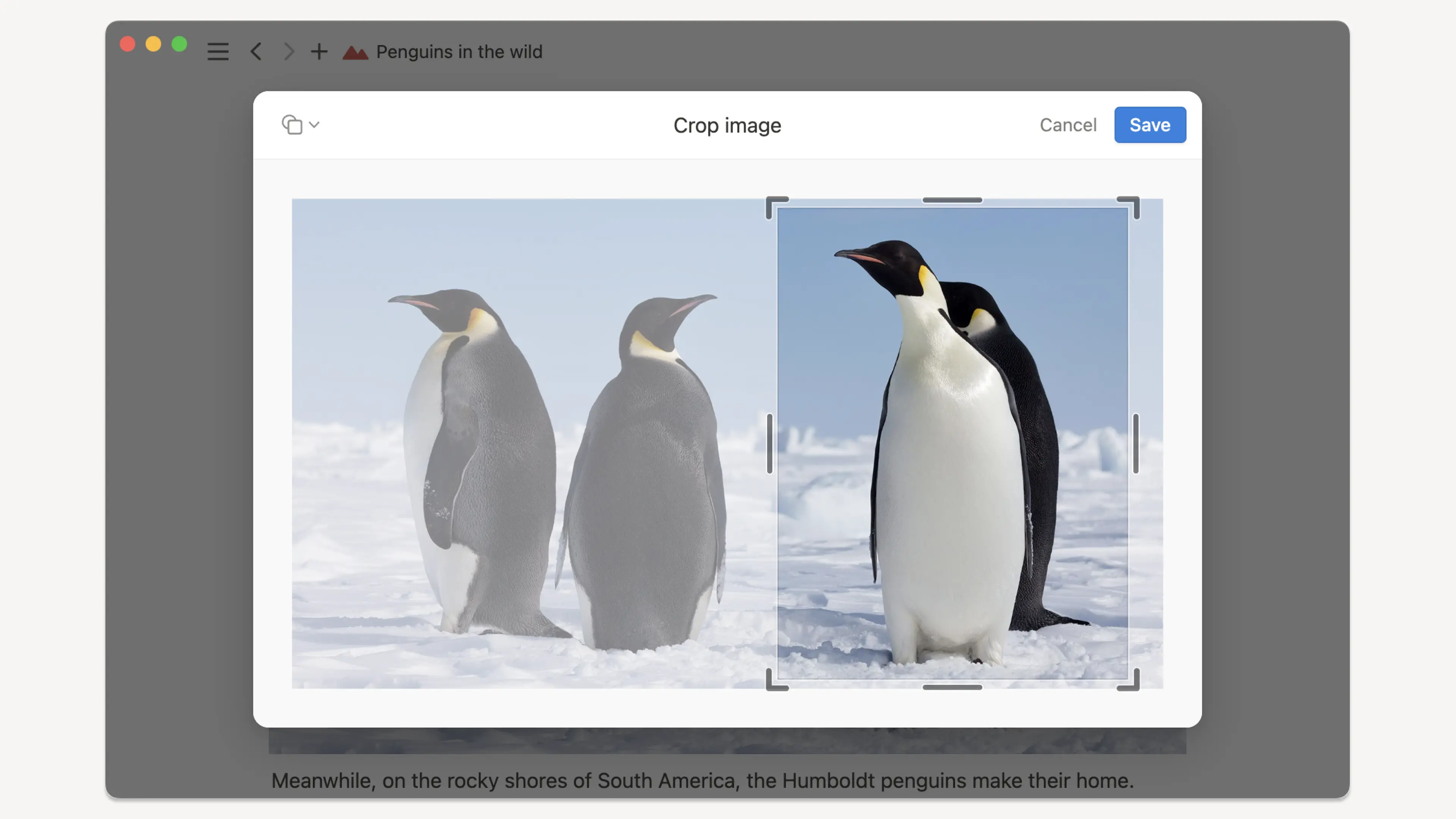
It can take a while to scroll through all the images that may be spread out on a page (e.g. PRDs with many product mock-ups). Now, once you double-click on any image, you have the option to scroll through all the other images on the same page. It’s also easier to zoom and download from the new menu.

Choose a type when creating a database property

Stay in flow while building your team’s database. Instead of a new property defaulting to text and changing it later, you can now choose the type (e.g. multi-select, status, etc.) when you click “+” to create a new one.

Wider columns on standard width pages

Your standard width pages just got even more flexible, with more possibilities for creative layouts. Now you can resize a list of columns to be wider than the margins of a standard width page. Just drag and resize columns as you usually would and they’ll expand beyond the margin of the page they're on.

Improvements to settings for third-party app connections

View and manage your settings for third-party app connections more easily with these new improvements:

  • Integrations to third-party services like Zapier, IFTTT, and Typeform, are now called “Connections” in the Settings menu and page menu.

  • “My connected apps”, a tab in the “Settings and Members” menu for viewing and managing connections, has now been renamed to “My connections”.

  • You can now manage page access for all connections in the ... menu at the top right-hand side of a page. These were previously shown in the “Share” menu of a page.

  • Workspace owners can view and manage connections to all third-party integrations within their workspace from the “Connections” tab in the “Settings and Members” menu. Users that are not Workspace owners will no longer see this tab.

Bug fixes & improvements

  • For new API features & improvements, go to developers.notion.com/changelog →

  • You can now configure the date format for the “Created time” and “Last edited time” properties in a database

  • The “random” button for picking emojis and icons at the top of a doc is now located next to the search bar

  • Fixed a bug that caused pasting a web page link in the source menu to default to the first listed Notion page